
Install and update FreeFiller
FreeFiller isn't in the Chrome Web Store, so Chrome installs it from a folder on your computer. It takes about two minutes, and you only need to do it once.
Jump to: Install · Update to a new version · Where is it on my computer? · Use it
Install
1. Download the ZIP
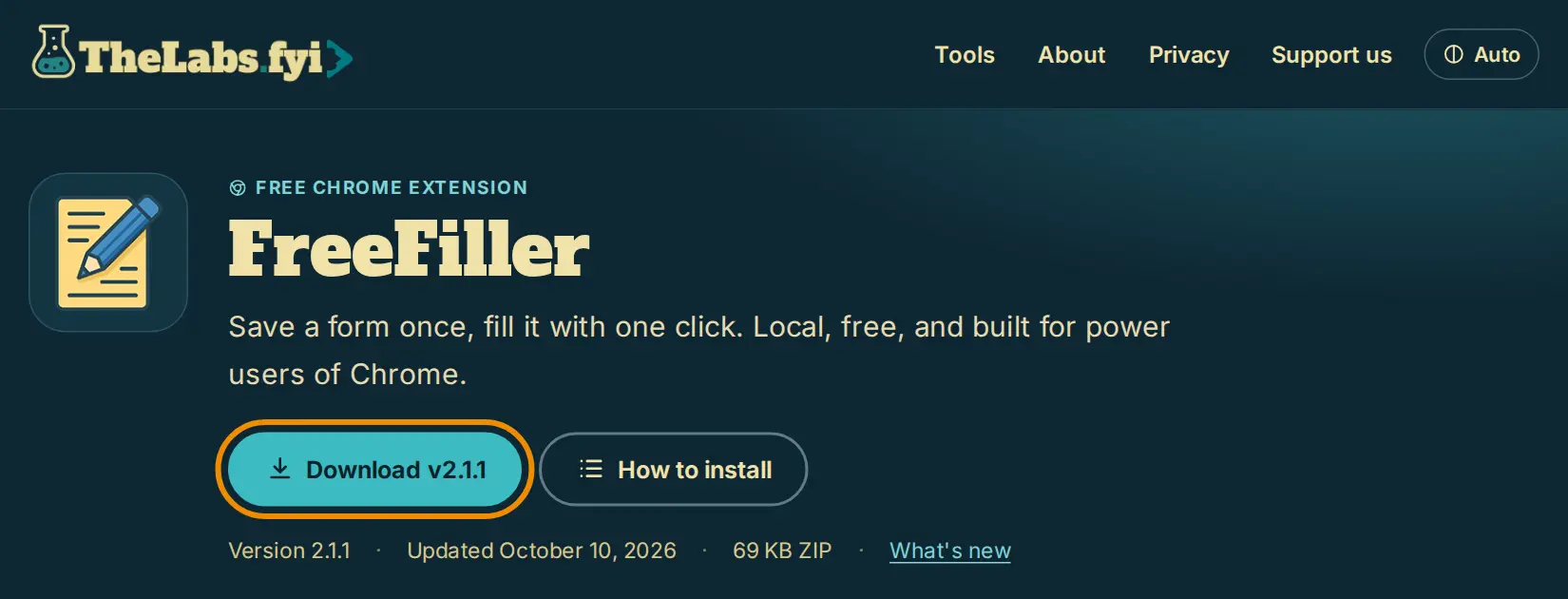
On the FreeFiller page, click Download.
2. Unzip it somewhere it can stay
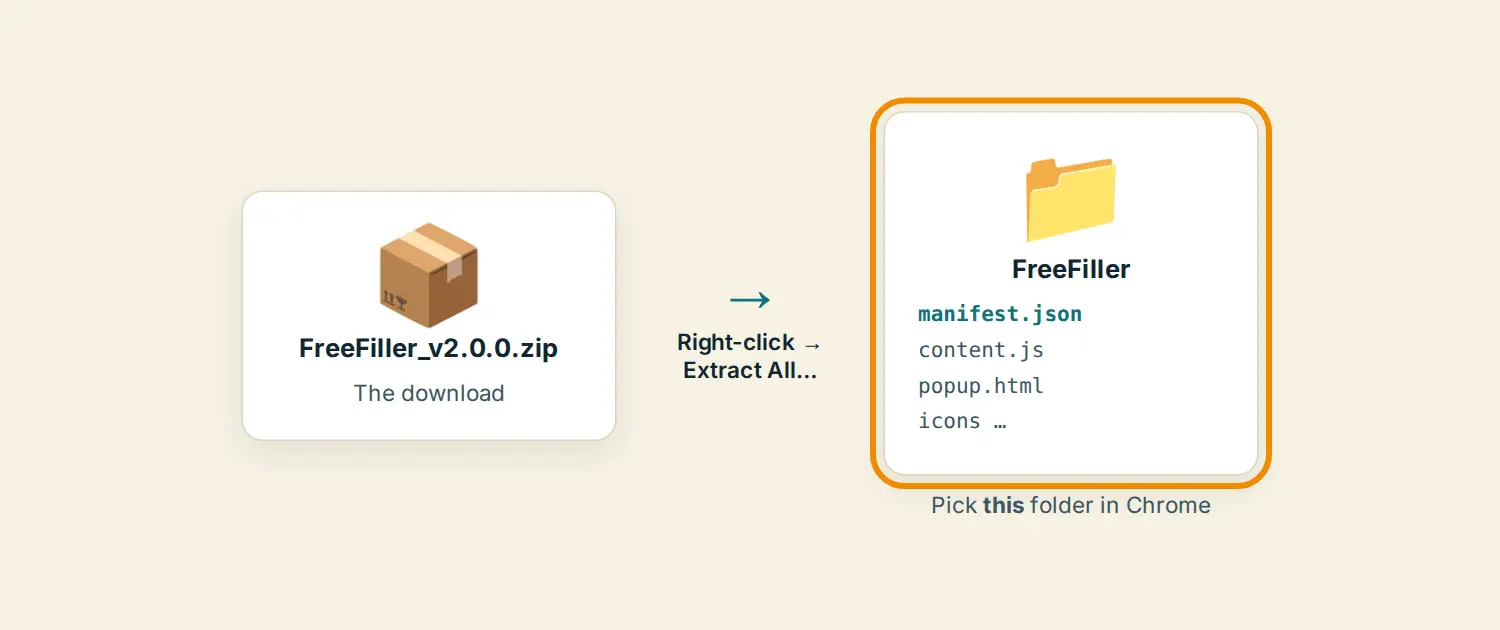
Chrome keeps using this folder, so put it somewhere you won't tidy away, like Documents (not Downloads, if you clear that out). On Windows: right-click the ZIP → Extract All…. On a Mac, double-click it.
You'll get a folder named FreeFiller with a file called manifest.json inside. That's the folder Chrome needs.
3. Open Chrome's extensions page and turn on Developer mode
Type chrome://extensions in the address bar and press Enter. Turn on Developer mode at the top right.

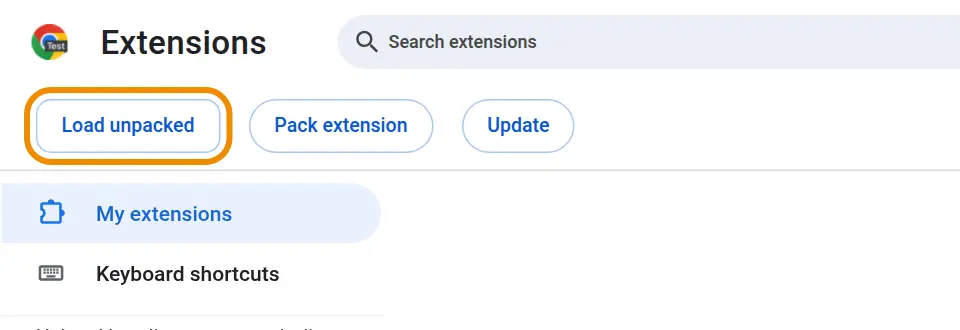
4. Click "Load unpacked" and pick the folder
Click Load unpacked, then choose the FreeFiller folder from step 2 (the one with manifest.json in it) and click Select Folder.
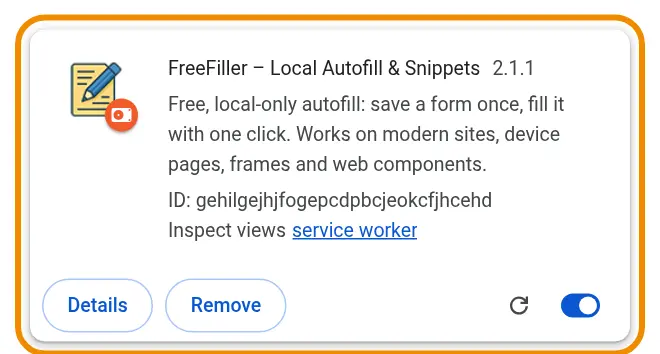
FreeFiller now shows up with your other extensions.
5. Pin it to the toolbar
Click the puzzle piece at the top right of Chrome, then the pin next to FreeFiller.
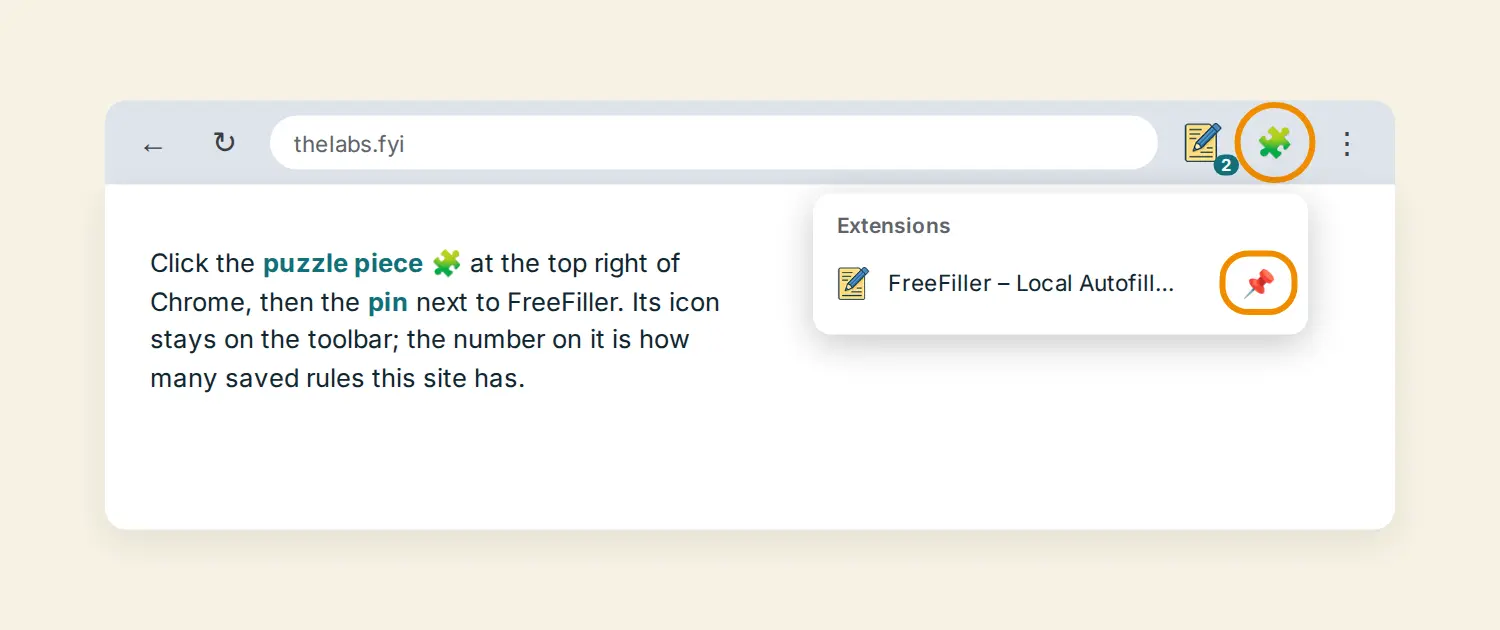
Chrome may now and then show a note about extensions in developer mode. That's normal for extensions installed from a folder; just close it.
Update
FreeFiller 2 tells you when there's a new version: a yellow note appears at the top of its popup (it checks once a day; you can turn that off in Options). Clicking the note brings you here.
Your saved forms stay with the copy of FreeFiller that Chrome already knows, so update that folder rather than installing a second copy.
- Make a backup first (just in case): click the FreeFiller icon → Options → Import & backup → Download backup. In older versions it's Backup → Export JSON.
- Find the folder FreeFiller runs from (next section).
- Download the new ZIP, unzip it, and copy everything inside its FreeFiller folder into your existing FreeFiller folder, replacing the old files.
- On
chrome://extensions, click FreeFiller's reload arrow.
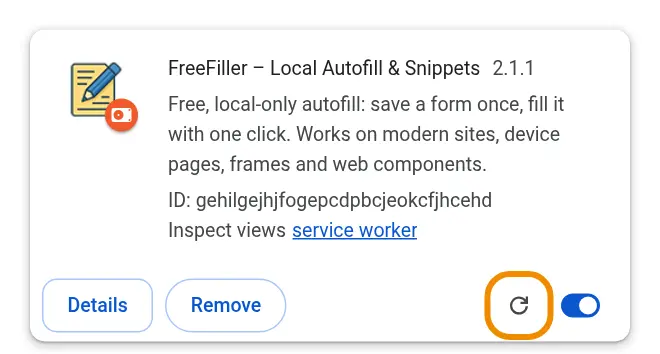
That's it: same rules, new version. The version number shows next to its name on the extensions page.
Installed the new version as a second copy by mistake? It will start empty. In the new copy's Options, choose Restore from backup and pick the backup file from step 1, then remove the old copy.
Where is FreeFiller on my computer?
On chrome://extensions, click Details on FreeFiller.
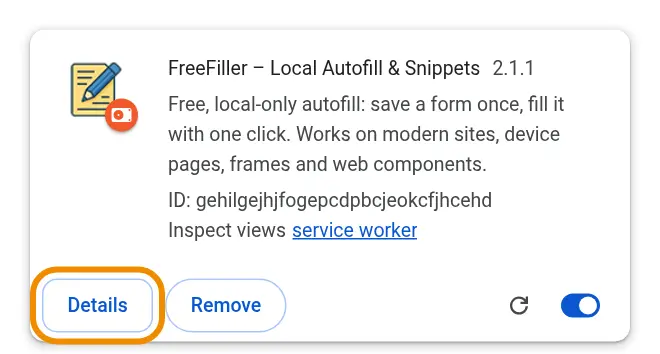
Scroll down to Source. Loaded from shows the folder (on Windows it looks like C:\Users\you\Documents\FreeFiller). Click the path to open the folder.

If that folder is ever deleted or moved, Chrome turns FreeFiller off. Put the folder back, or install again and restore your backup.
Use it
Fill in a form yourself once (username, password, anything). Then right-click inside it → FreeFiller → Save this form. A note at the top of the page says what was saved.
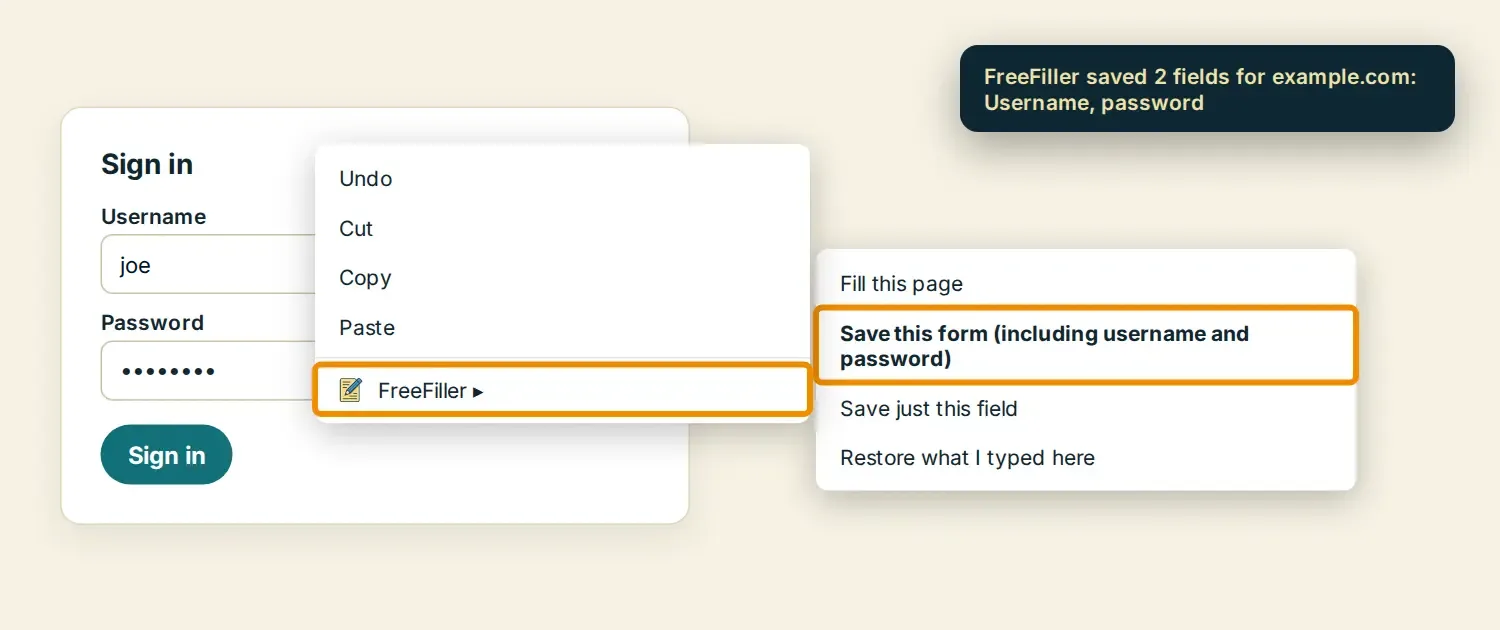
Next time, FreeFiller fills it in when the page opens. You can also click the toolbar icon → Fill now, or press Ctrl+Shift+F. The popup also lists the rules saved for the site you're on (passwords hidden):
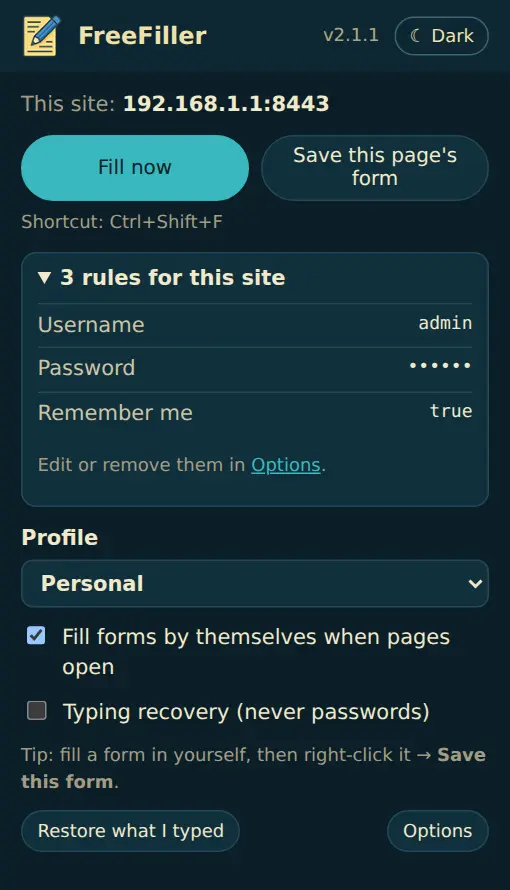
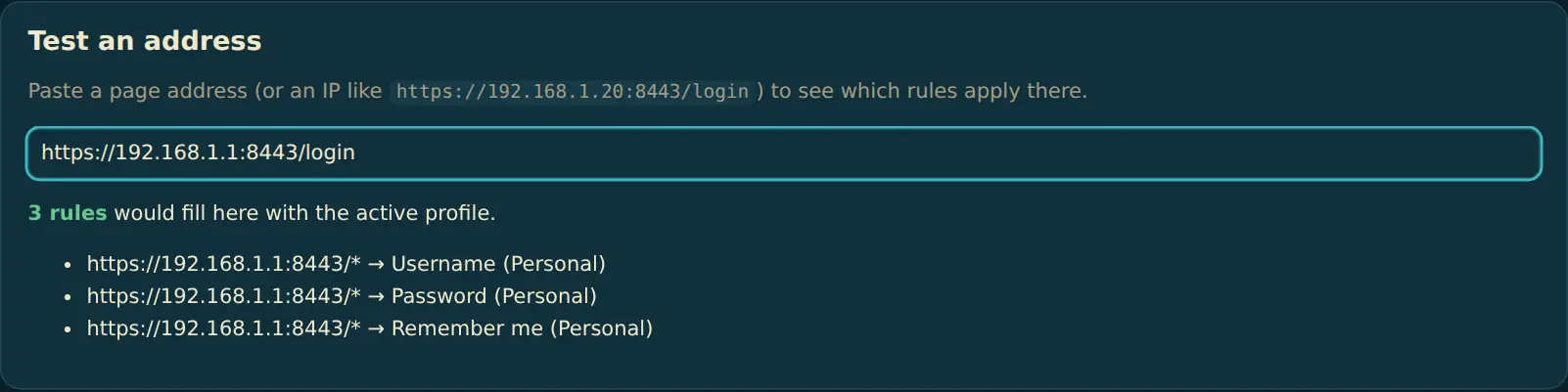
Everything else is in Options: edit rules, profiles, snippets, backups, Test an address to see which rules apply anywhere, and Clean up to tidy copies and leftovers.
Questions or something not filling? support@thelabs.fyi